
As a community leader, you can manage the women who are part of your community either by going to the members section on the Manage page or you can also access it by clicking on the Members page.
This is where you can review membership requests, manage current members, and invite women to join your community.
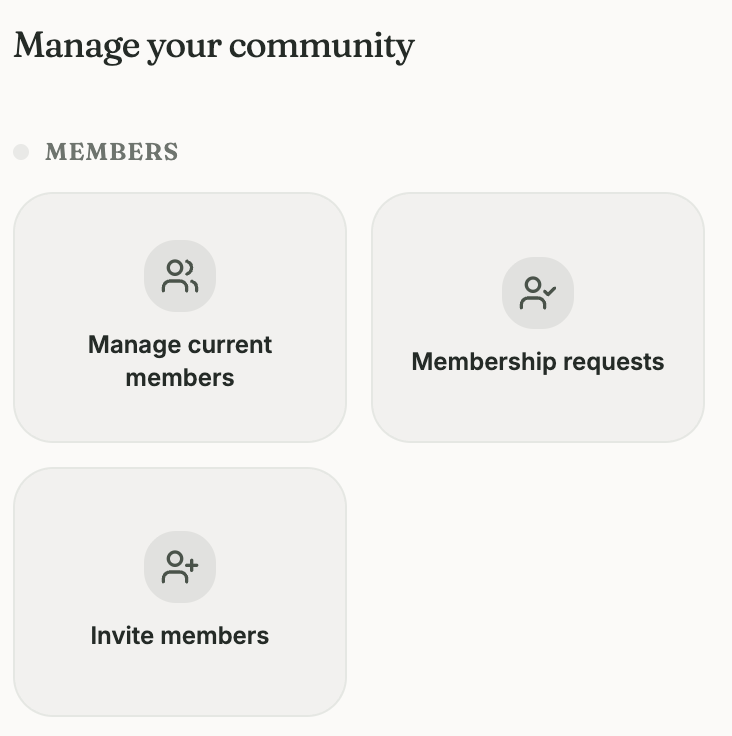
Manage Current Members
The Members section gives you an overview of the women currently in your community. Select a member to view more information about her activity within your community.
Member Overview
You can see basic information and activity, including:
Join date
# of events attended
# of upcoming RSVPs
Amount spent within the community
Date of last attended event
These details can help you understand how members are participating in your community over time.
Member Vitals
For a deeper look at a member's activity, you can view additional information through Member Vitals and Leader Insights.
These insights provide more detail about a member's engagement and participation within your community.
Private Notes
You can add private notes about a member to help you keep track of important context. Private notes are only visible to community admins and are not visible to the member.
Managing Member Roles
You can change a member's role between Member and Admin.
Admins have additional access to help manage the community. Only give admin access to women you trust to help manage your community since they can remove/block members, create/edit/delete events, and manage payments.
Removing vs. Blocking a Member
You can either remove a member from your community or block her from your community. These actions have different purposes.
Remove ends the woman's membership in your community. Block is a stronger action that prevents the woman from accessing or rejoining your community. See below for additional information on the difference between removal and blocking.
Remove Member | Block Member | |
|---|---|---|
Community Membership | Ends the woman's membership in your community | Permanently prevents the woman from participating in your community |
Community access | Removes access to member-only community features | Removes access and prevents future participation |
Discover | Can see community on discover page | Cannot see community on discover page |
Events | No longer access community-only events | Cannot participate in any events hosted by your community |
Can she rejoin? | Can rejoin at any time | Cannot rejoin unless an admin removes the block |
When to use it | Used for temporarily restriction from your intimate community environment | Used when community guidelines are excessively broken and you want the member to have absolutely no interaction with your community |
*Removing or blocking a member from your community doesn't impact direct messages and/or memories that already exist. Those require you to remove or block them as a user (outside of your community).
Need to address a safety concern? Community Safety provides additional tools and guidance for handling reports, blocking, and other safety issues.
Memberships Requests
If your community requires approval to join, new membership requests will appear for you to review. You can review a women's request and choose whether to approve or decline it. We will only notify the user if their request is approved. Once approved, she becomes a member of your community and can access its member features based on the role permissions you set for her.
Inviting Members
You can invite women to join your community directly from the Members section. Invitations give women a direct way to join your community without needing to find it through the Discover page.